
Detect it. Truly redact it.
Fuseji finds personal data such as names, addresses, phone numbers, and account numbers in Japanese PDFs, and redacts it by burning it into the page so it cannot be recovered. Your documents never leave your Mac.
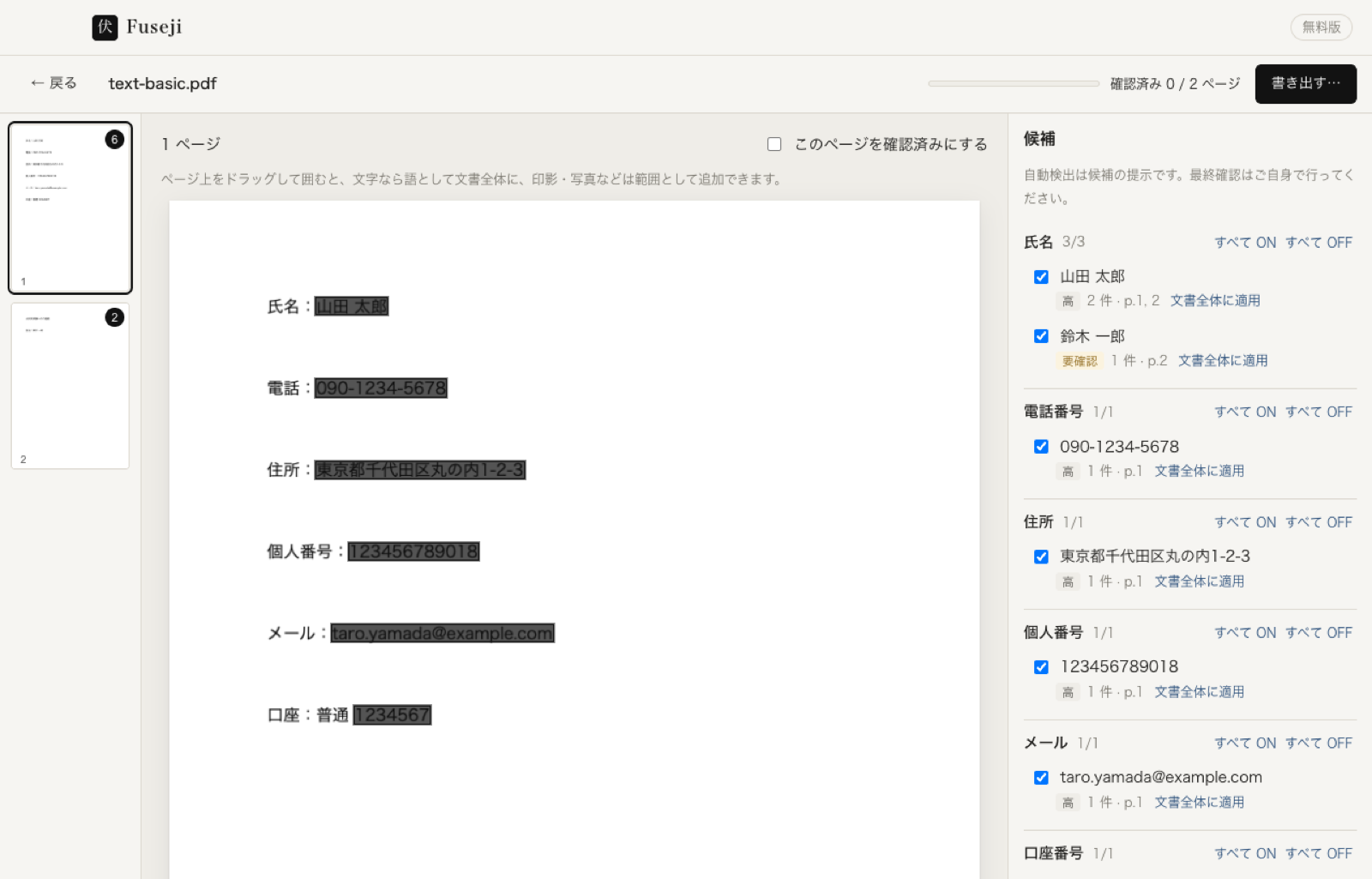
Detect, burn in, verify.
Detect
Fuseji uses rules and a Japanese ML model to find personal data such as names, addresses, phone numbers, My Number, and bank accounts, and shows them as candidates. The model is our own, trained only on synthetic data with no real people's information. You decide what to redact while looking at them on screen.
Burn it in
Redaction is burned into the page. Text, images, metadata, hidden characters, annotations, and attachments are all removed. Nothing survives a copy-paste, and nothing peeks out from under a black rectangle.
Verify
Right after export, Fuseji runs a full-text search on the new file and writes a verification report of what was removed and what was checked. On Pro and Office, strict verification also reads the page images with OCR.
Your documents never leave this Mac.
Fuseji does not send your documents, images, detection results, or reports anywhere. There is no server, no account, and no analytics.
Everything runs on-device
Opening, detection, redaction, verification, and the report all happen on your Mac. The original file is never modified; Fuseji always writes a new one.
Online only for licensing and updates
Fuseji connects to the internet only to activate or deactivate your license key, to check it once a week, and to check for updates once a day (you can turn this off). Nothing about your documents, images, or detection results is sent.
No telemetry
No analytics, no crash reporting, no install IDs. The Settings screen lists when the app goes online.
For offices without internet
We also issue offline license keys that work without an internet connection (Office plan only).
Made for everyday document work.
Review candidates on screen
Click a term in the right-hand list to jump to its next occurrence. Drag on the page to add a region (seal, photo, signature) as a redaction candidate. Add a term to apply across the whole document in one click.
Verified after every export
After export, Fuseji runs a full-text search (plus OCR on Pro and Office) to confirm the redacted terms do not appear anywhere, and writes a report.
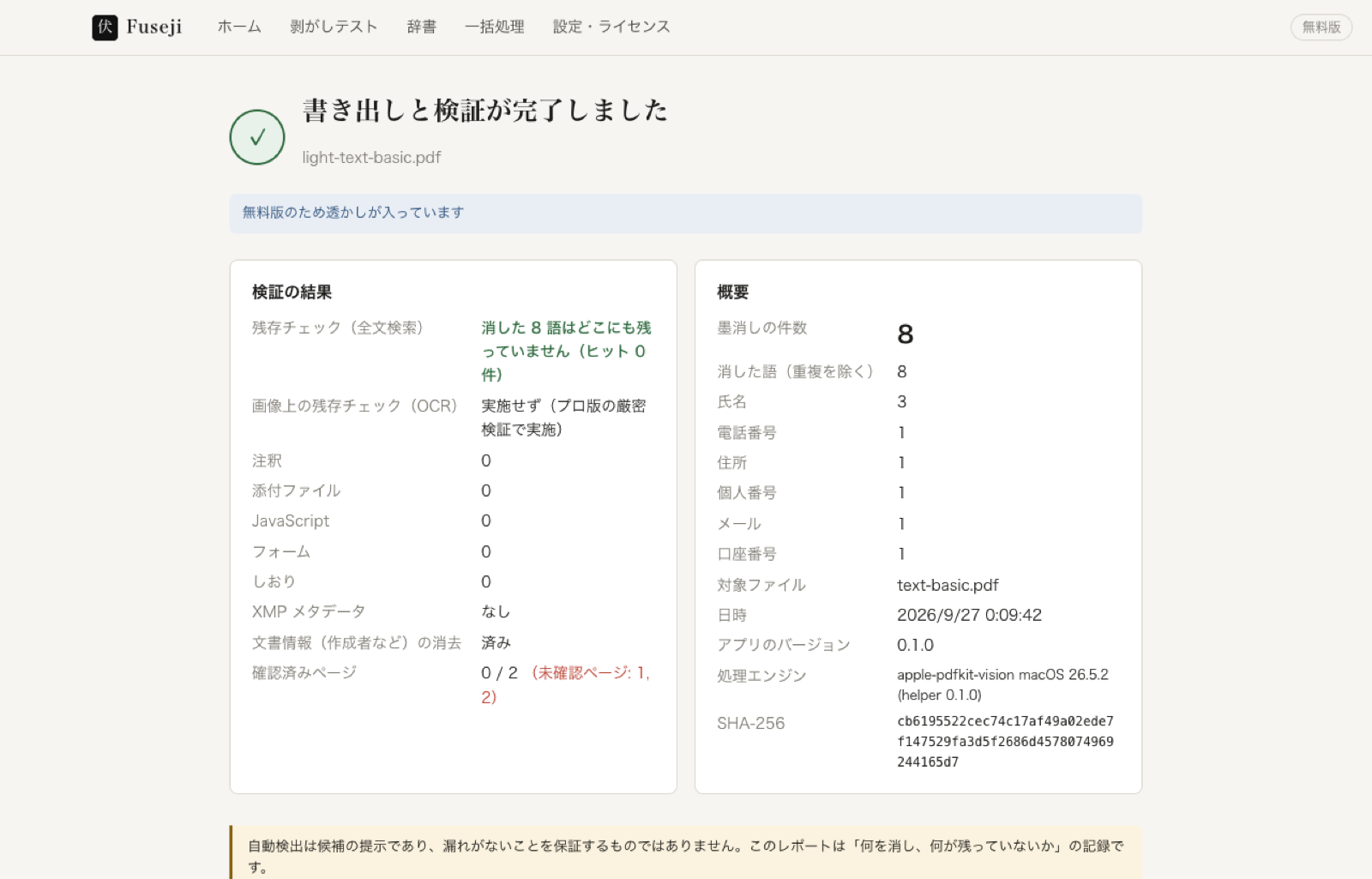
Pick a style, then preview the result
Choose from four redaction styles: black, label (【氏名1】 etc.), white-with-border, or underline. Click “Preview” to see exactly what the exported file will look like, right on screen.
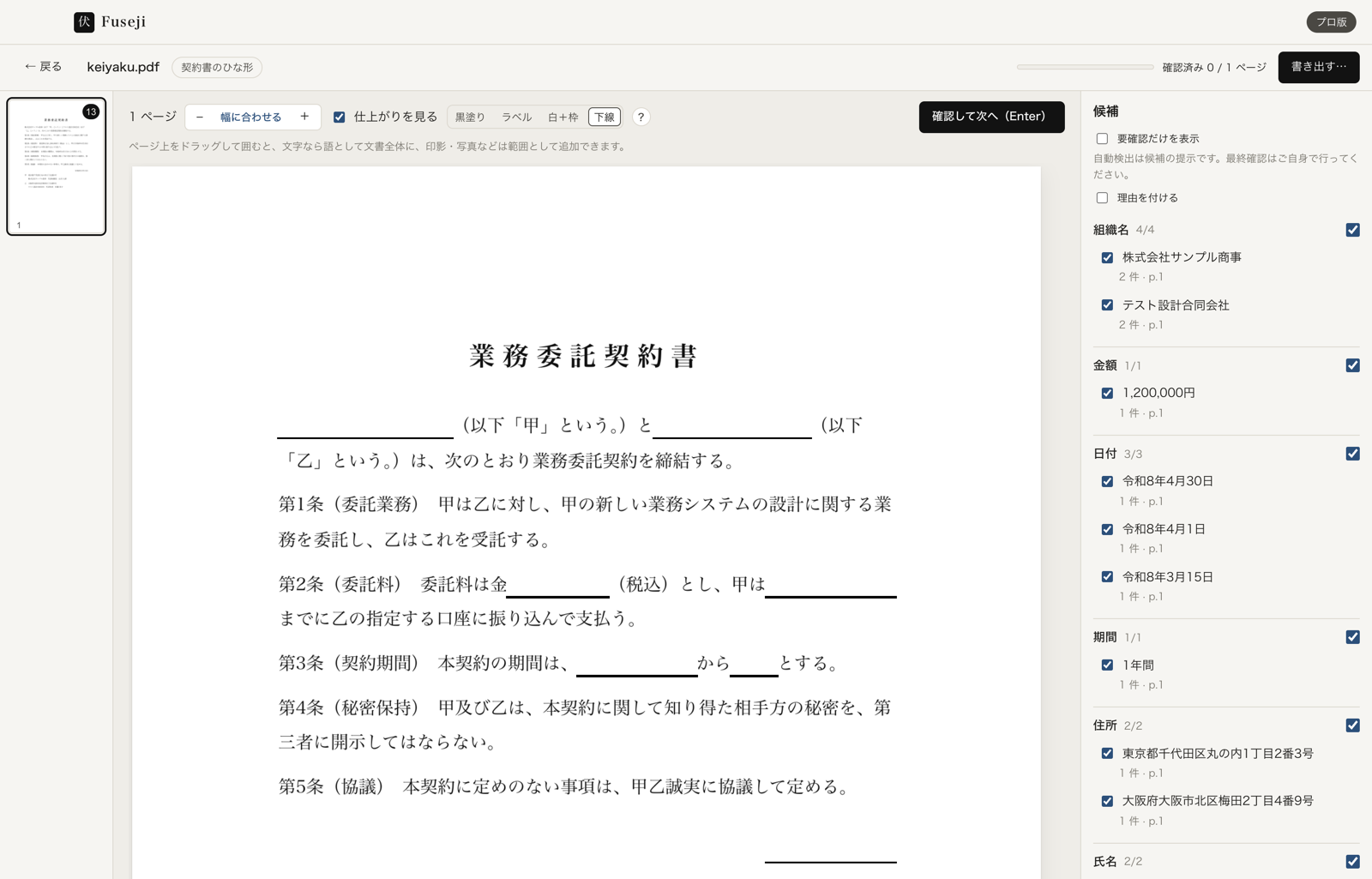
Redaction reasons, right in the box (Pro and up)
Keep the reason for withholding information, such as “Article 5, item 1,” inside the black box and in the report. The Freedom of Information Act's clauses are built in, and you can register your own ordinance clauses too.
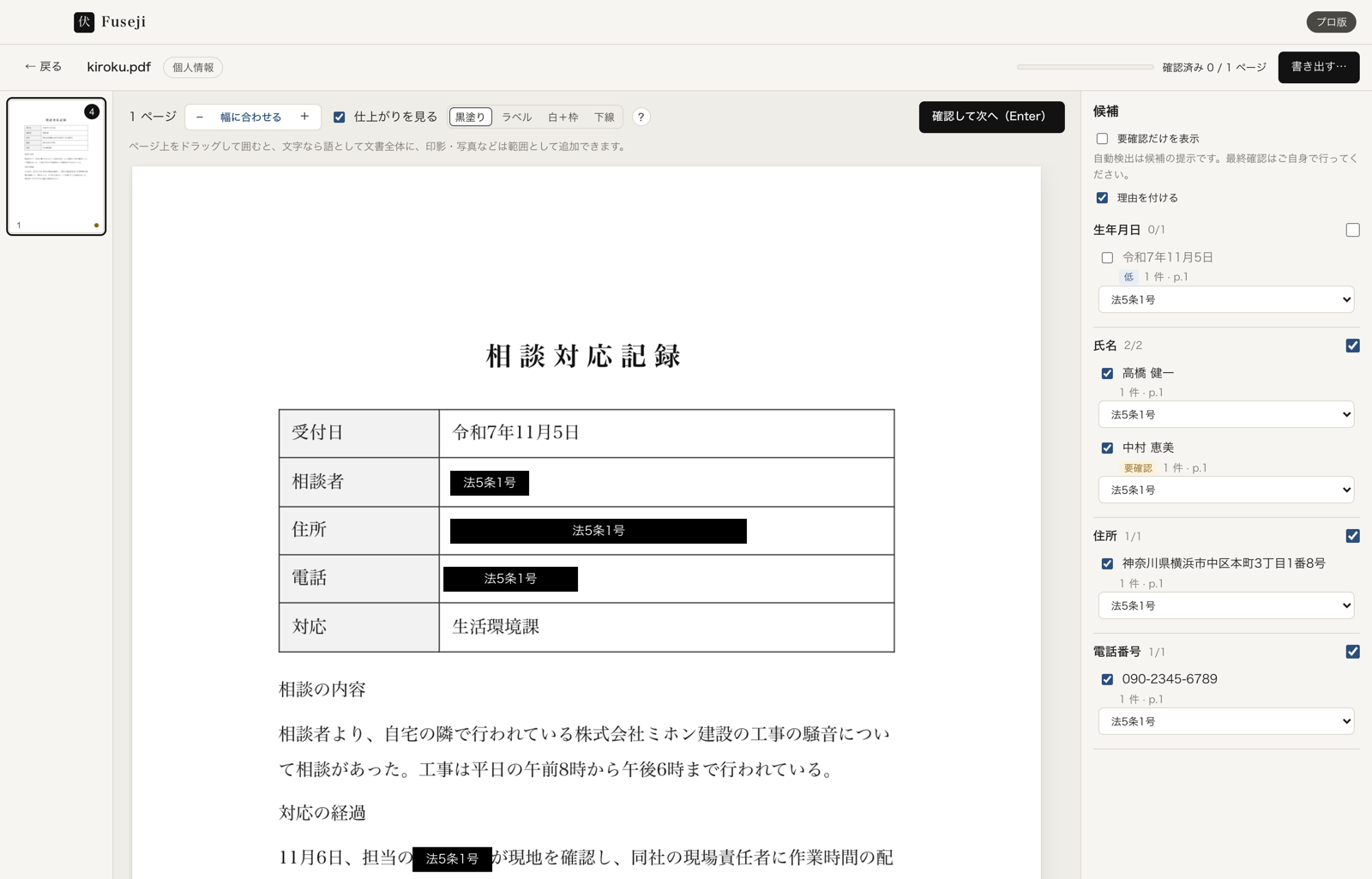
Confirm on screen, per page
Detection is a set of candidates. Toggle each on or off in the list, and mark each page as confirmed. The report records your confirmation state.
Catches hidden text
When a page has white text, tiny text, off-page text, or text hidden under images, Fuseji flags the page and rasterises it on export so the text cannot survive.
Reads scanned PDFs too
Pages without a text layer are OCR'd with macOS Vision (Japanese), then run through the same detector.
Inspector, free
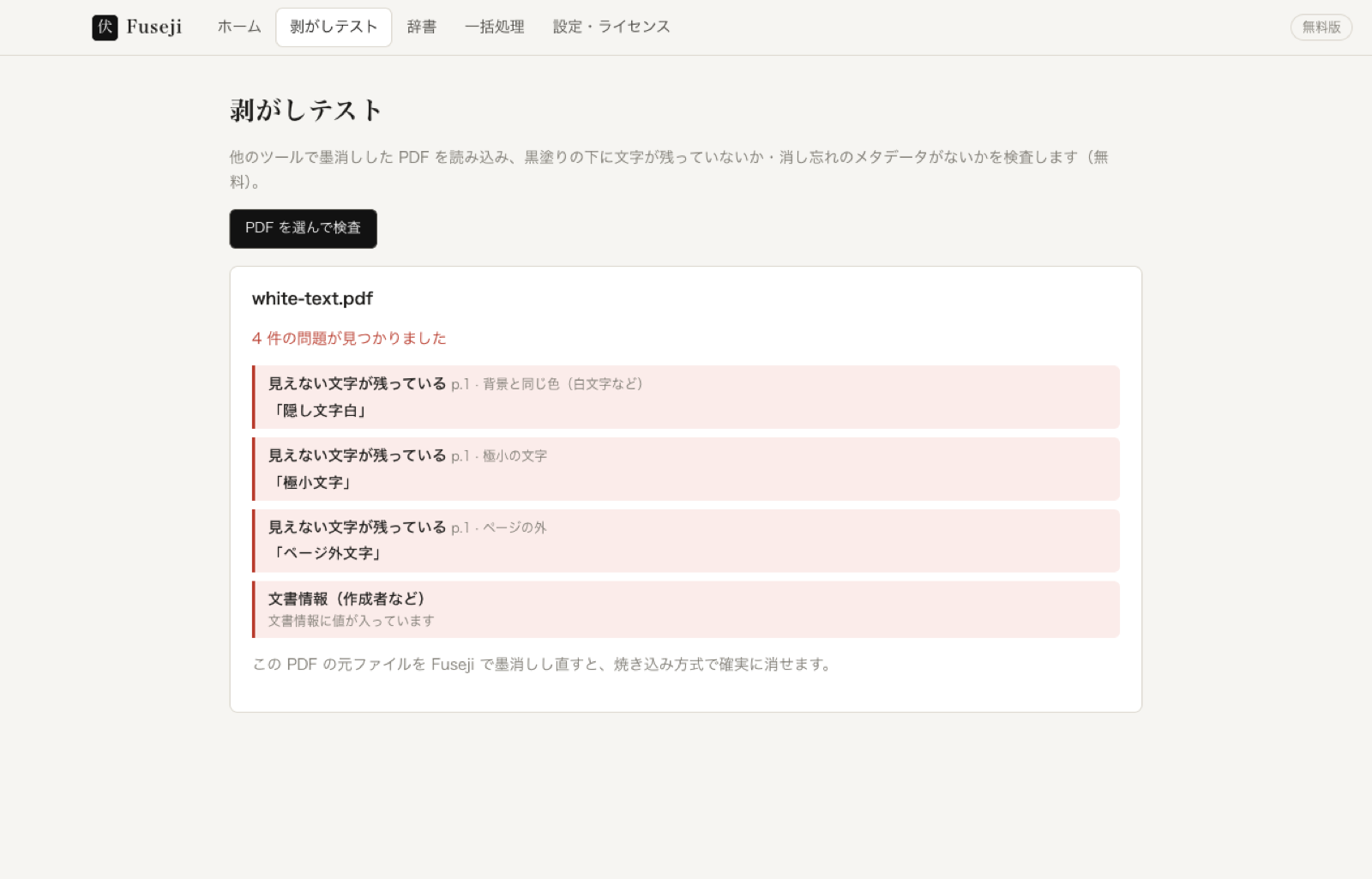
Open a PDF redacted with another tool, and Fuseji checks it for residual text, hidden characters, and metadata. This is free.
Check PDFs redacted with other tools.
Inspector
Drop in a PDF you want to verify. Fuseji reads it locally and checks for residual text, hidden characters, annotations, attachments, and metadata. Detection, review, export, and the inspector are all available in the free version — forever.
One-time purchase with one year of updates.
Sales and payments are handled by Polar (Merchant of Record). USD, all taxes shown at checkout. The Office plan supports bank-transfer invoicing.
Personal
one-time, 1 Mac
Buy- 1 Macyour main Mac
- 1 year of updateskeep using your version after that
Pro
one-time, 2 Macs
Buy- 2 Macsyour desk and your laptop
- Batch + shared dictionaryprocess a folder, share dictionaries
- Strict verificationOCR-based residual check
- Redaction reasonse.g. Article 5 item 1, in the box and the report
Office
one-time, 5 Macs
Buy- 5 Macsfor small offices
- Bank-transfer invoicingavailable
- Offline keysfor fully air-gapped firms
- Redaction reasonse.g. Article 5 item 1, in the box and the report
Need 3 or more licenses? Contact us.
Free vs paid
Questions, answered.
Is the personal data really gone?
Yes. Redaction is burned into the page, so text, images, metadata, annotations, attachments, and hidden text are all unrecoverable. After export, Fuseji re-runs a full-text search (and OCR, on Pro) to confirm the redacted terms don't appear anywhere.
What does "burning in" mean?
It means removing the text under the redaction and rebuilding the page. Many PDF redactions just place a black box over the text, and the text is still in the file, so it can be copied or revealed by moving the box. Burning in removes the text itself, so it cannot be recovered.
What is a "peelable" redaction?
A redaction where a black box sits on top of text that is still in the file. It looks removed, but copy and paste or an editing tool can reveal it. Personal data has actually been exposed this way in published documents.
What is the inspector?
It checks a PDF redacted with another tool for text under black boxes, hidden text, and metadata such as the author. It is free. Use it on PDFs you receive or are about to send.
Can I still select and search text in the exported PDF?
Yes. Text outside the redactions can be kept for search and copying (an export option). You can also export every page as an image with no text at all.
What's the detection rate?
We don't quote a number. Automatic detection surfaces candidates, but it isn't a guarantee. Make the final call on screen. Fuseji records your confirmation state but isn't liable for what you didn't catch.
Is my document sent anywhere?
No. Your document, images, detection results, and reports are never sent off your Mac. The only network calls are license activation, deactivation, a once-a-week license check, and a once-a-day update check (which you can turn off).
Which Macs are supported?
Apple silicon (M1 or later) with macOS 13 Ventura or later. Intel Macs are not supported. A Windows version is in preparation.
What's the difference between Free and paid?
Detection, review, export, and the inspector are identical. The free version adds a watermark to exports and disables saving the verification report, batch processing, shared dictionaries, and strict (OCR) verification.
Can I get a refund?
Yes. Within 14 days of purchase, for any reason. Refunds are processed by Polar.
How do I get help?
Email [email protected].
What data was the machine-learning model trained on?
No real people's information. We fine-tuned a Japanese model (BERT) published by Tohoku University, using only data we built by combining fictional names, places, and sentences. The model is bundled under CC-BY-SA-4.0, and the credit is listed in the app's “About Licenses” screen.
Can I use this to build a contract template?
Yes. Choose the “Contract template” analysis type when you open a PDF, and Fuseji also surfaces amounts, dates, and periods as candidates alongside company names, personal names, and addresses, with underline set as the default style. You can turn a signed contract into a fill-in-the-blank template.

Try the free version first.
Automatic detection surfaces candidates; it does not guarantee nothing was missed. The final check is yours.